Update Relay
On this page
You can check your installed Relay version and update it from Obsidian's community plugin settings.
Check your installed version
- Open Obsidian Settings.
- Select Community plugins.
- Under Installed plugins, find Relay and read the version displayed beneath its name.
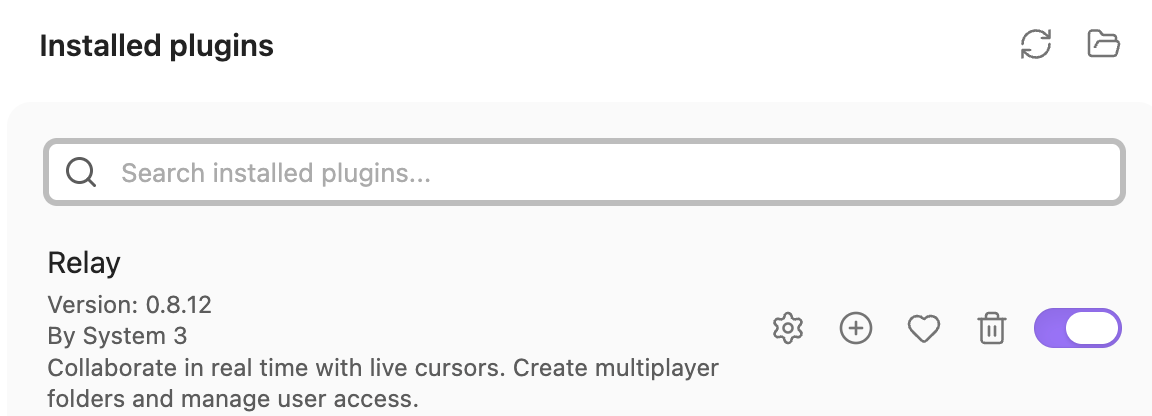
If a feature requires a later version than the one installed, check for an update using the steps below. The Relay release notes describe what each release includes.
Update the Relay plugin
- Open Settings → Community plugins.
- Select Check for updates. This checks for available updates without installing them.
- Under Installed plugins, select Update next to Relay if an update is available.
- Check the version beneath Relay's name again to confirm the update.
These are Obsidian's standard community plugin update steps. Repeat them in each vault where you use Relay.
Troubleshoot an update
If the update fails, check your internet connection and try Check for updates again. If Relay does not work after updating, close and reopen Obsidian.
If the problem continues, contact Relay support on Discord with your Obsidian version, installed Relay version, and any error message.
Try new features early
Want the latest features before the next stable release? Install the Relay beta to try them and help us test what’s coming next.