Configure attachments for sharing
On this page
When you paste images or attach files in Obsidian, they need to be saved inside your Shared Folder for Relay to sync them. By default, Obsidian may save attachments to a centralized location outside your Shared Folders, which means they won't sync.
This guide shows you how to configure Obsidian so attachments are automatically placed where Relay can sync them.
Info: Attachment sync requires a paid plan
Attachment sync is only available on Relay for Teams. See Upgrade to Relay for Teams or visit the pricing page for details.
The issue
Relay sharing is folder-based. Relay will never look outside a Shared Folder into other parts of your vault. If an attachment is saved outside the Shared Folder, it won't sync, even if the note that references it is inside the Shared Folder.
This is a common issue when:
- You have a vault-wide attachments folder (like "Attachments/" at the root of your vault)
- You're adding Relay to an existing vault with attachment settings you configured before using Relay
Recommended solution: attachments in subfolders
Configure Obsidian to save attachments in a subfolder within the current folder. This ensures attachments stay inside your Shared Folders and sync automatically.
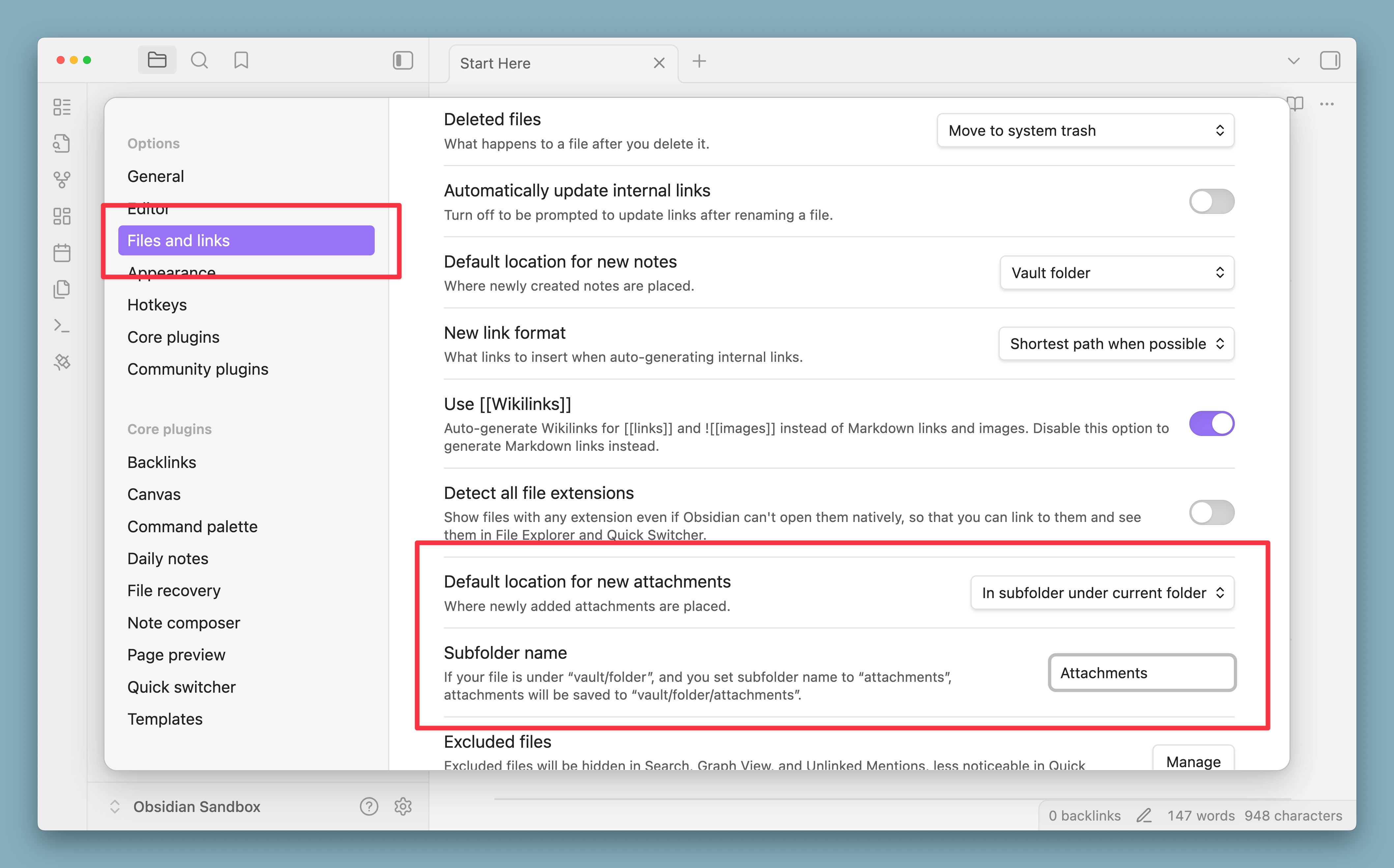
How to configure this
- Open Obsidian settings (gear icon in the lower left)
- Navigate to Files and links
- Under Default location for new attachments, select:
In subfolder under current folder - Under Subfolder name, enter:
Attachments(or whatever name you prefer)
With this configuration:
- If your note is in
Projects/Website/meeting-notes.md - Pasted images will be saved to
Projects/Website/Attachments/ - If
ProjectsorWebsiteis a Shared Folder, the attachments will sync automatically
Alternative solutions
Same folder as current file
If you don't want a separate attachments subfolder, you can save attachments directly alongside your notes:
- Open Obsidian settings
- Navigate to Files and Links
- Under Default location for new attachments, select:
Same folder as current file
With this configuration, attachments are saved directly in the same folder as the note you're working in.
Manually move attachments in
If you prefer to keep your attachments centralized in your vault root, you can always manually move new (and old) attachments into your Shared Folder when you want to share.
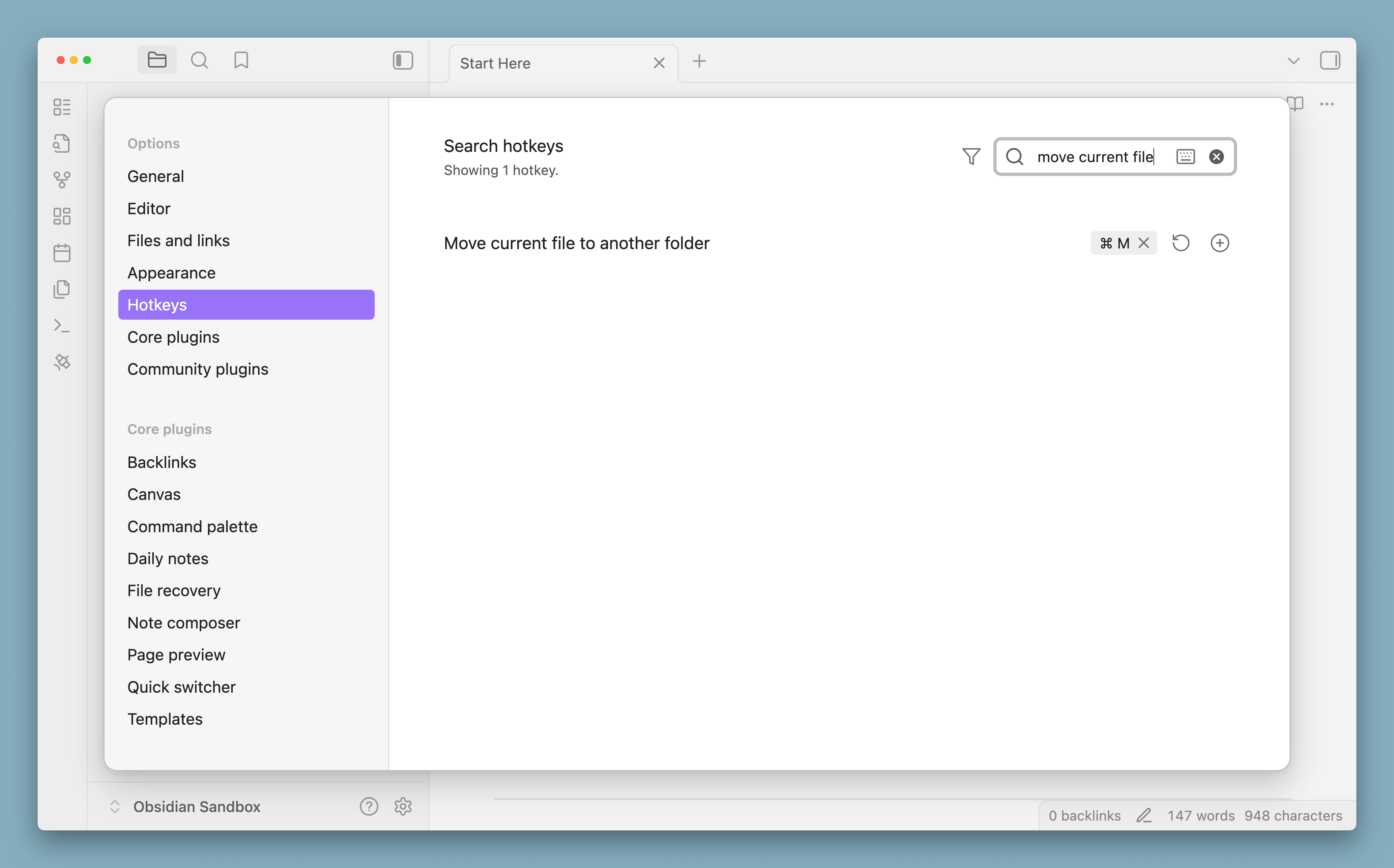
You can also use Obsidian's file move hotkey to make this faster (set in Settings → Hotkeys → "Move file to another folder").
Need help?
Join the Relay Discord for support.